
ResizeBento
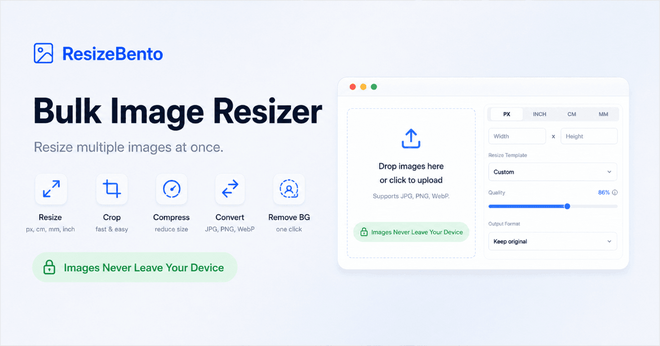
Upload one or multiple JPG, PNG, or WebP images, enter the dimensions you need, and resize them directly in your browser. ResizeBento keeps the process simple while giving you control over width, height, aspect ratio, output format, and image quality. It works well for website images, social media posts, product photos, documents, profile pictures, and everyday image resizing tasks.
Resize Multiple Images Together
Process an entire group of images with the same dimensions and export settings in one workflow. Add your files, apply shared width, height, format, and quality options, then review the results before downloading. Batch image resizing saves time when preparing product photos, blog images, marketing assets, client files, or social media content that needs consistent dimensions.
Keep Your Images Private
Every image is processed locally inside your browser, so your original files remain on your device. There is no need to upload personal photos, business graphics, or client materials to a remote server. This private image resizing workflow is useful when working with confidential documents, unpublished designs, customer assets, or any files you prefer to keep under your control.
Choose Exact Image Dimensions
Set precise width and height values using pixels, inches, centimeters, or millimeters. For print projects, choose the required DPI and let ResizeBento calculate the correct pixel dimensions. Whether you are preparing a passport photo, presentation image, printed document, website banner, or custom graphic, you can create images that match the exact size required for your project.
Control Format and Image Quality
Export resized images as JPG, PNG, or WebP based on how you plan to use them. Choose JPG for photographs and smaller files, PNG for transparent graphics, or WebP for efficient web delivery. Adjust the available quality settings to balance visual detail and file size, making it easier to prepare images for websites, email, storage, sharing, or online publishing.
Preserve the Right Proportions
Lock the aspect ratio to maintain the original shape while changing the width or height. When the target dimensions use a different ratio, choose how the image should fit by cropping, adding padding, stretching, or placing it within the available space. These options help you create accurate results while controlling composition, empty space, and the final appearance of each resized image.
© Untitled. All rights reserved.